 by
by Integrating the Google Maps API in a WordPress Gutenberg block involves several steps. Below is a guide on how you can achieve this:
1. Go to the Google Cloud Console:
- Visit the Google Cloud Console.
2. Create a Project:
- If you don’t have an existing project, create a new one by clicking on the project dropdown in the top bar and selecting “New Project.” Follow the prompts to set up a new project.
3. Enable Billing for Your Project:
- In the Cloud Console, navigate to the Billing section.
- If prompted, select or create a billing account.
- Link your project to the billing account.
4. Enable APIs and Services:
- In the Cloud Console, navigate to the APIs & Services Dashboard.
- Click on “Enable APIs and Services.”
5. Enable the Maps JavaScript API:
- In the API Library, search for “Maps JavaScript API.”
- Select the Maps JavaScript API from the results.
- Click the “Enable” button.
6. Create an API Key:
- In the Cloud Console, navigate to the APIs & Services > Credentials page.
- Click on “Create Credentials” and choose “API Key.”
- Copy the API key that is generated.
7. Add Billing Information:
- In the Cloud Console, navigate to the Billing section.
- Click on “Billing details” for your project.
- Click on “Payment overview.”
- Click on “Add a payment method” or “Link a billing account.”
8. Verify Your Billing Information:
- Follow the prompts to add your billing information, including your credit card details.
- Google may perform a small transaction to verify the payment method.
Integrating to a Google Map block
1. Create new/edit a post
- In the post editor’s page. Click on the block Inserter.
- Input keyword Google Maps.
- Click on the Google maps icon.
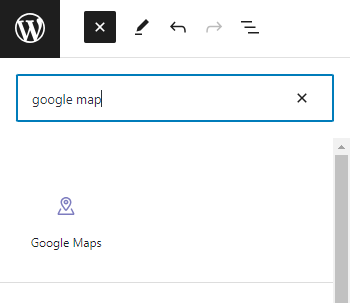
2. Setup the Google map api key
- Click on the Google map block.
- On the right-side corner, Scroll down and find the API Key section
- Input the API that was generated in the Google Console.
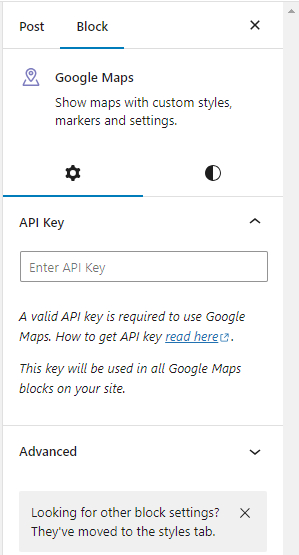
3. Adding the Address
- Click on the Google Map Block.
- On the bottom part of the block, Input the desired address.
- The list will display a list of suggested address. Then Click on the desired address shown.
Integrating Google API to custom code
Example in this section is about displaying the list of google reviews of the desired address
1. Add API Key to WordPress:
- Open your WordPress theme’s
functions.phpfile (or create a custom plugin). - Add the following code to enqueue the Google Places API script and set the API key:
function add_google_places_script() {
    wp_enqueue_script('google-places', 'https://maps.googleapis.com/maps/api/js?key=YOUR_API_KEY&libraries=places');
}

add_action('wp_enqueue_scripts', 'add_google_places_script');
Replace YOUR_API_KEY with your actual Google Places API key.
2. Display Google Map Reviews:
- Create a new function to fetch and display the reviews. Add the following code:
function fetch_google_maps_reviews($place_id) {
    $api_key = 'YOUR_API_KEY'; // Replace with your Google API Key

    $request_url = "https://maps.googleapis.com/maps/api/place/details/json";
    $params = array(
        'place_id' => $place_id,
        'key' => $api_key,
        'fields' => 'reviews'
    );

    $url = add_query_arg($params, $request_url);

    $response = wp_remote_get($url);

    if (is_array($response) && !is_wp_error($response)) {
        $data = json_decode(wp_remote_retrieve_body($response));

        if ($data) {
            return $data->result->reviews;
        }
    }

    return false; // Failed to fetch reviews
}
3. Use the Function in Your Theme:
- In your WordPress theme template or Custom block, call the function and pass the Google Places ID as a parameter:
$google_places_id = 'YOUR_GOOGLE_PLACES_ID';
display_google_reviews($google_places_id);
Replace YOUR_GOOGLE_PLACES_ID with the actual Google Places ID of the location you want to display reviews for.
This code sets up a map using the Google Places API and fetches reviews for a specific location, displaying them on your WordPress site. Make sure to customize the code according to your theme structure and design preferences. Additionally, consider adding error handling and styling for a better user experience.