 by
by By default, your social share will appear at the bottom of your post, but in this tutorial, I will teach how to put it anywhere you want using shortcode.
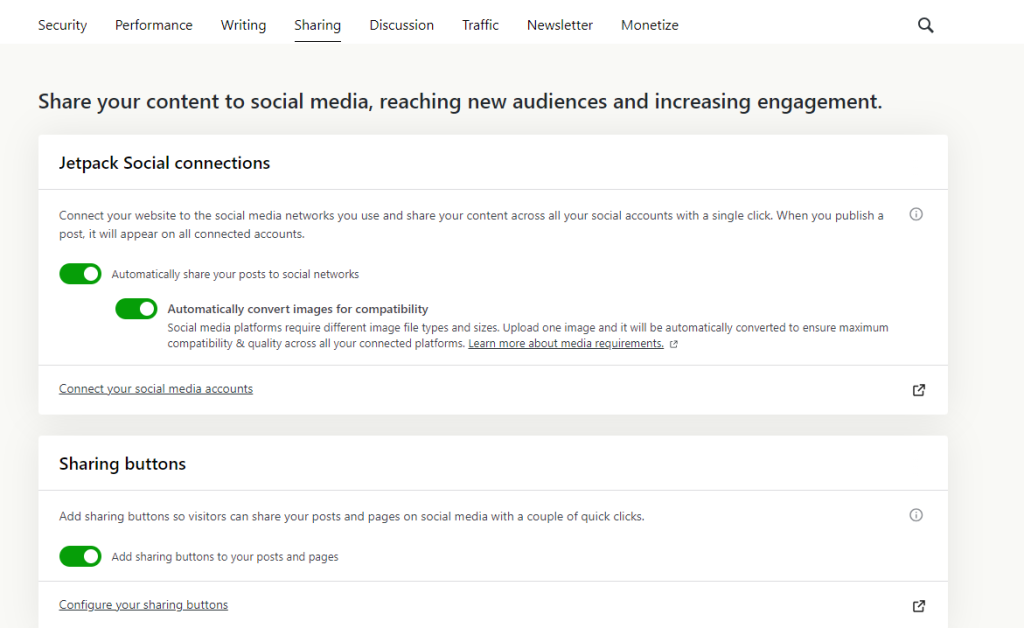
Step 1: Of course, the first thing you need to do is to enable your social share on jetpack. you can do it by going to jetpack > settings > sharing, you can then see the button to enable the social share (see screenshot below), enable it as per the screenshot.
Step 2: Go to your shortcode.php and copy and paste this code below.
function jp_cust_social_share_sc($atts, $content){
	extract( shortcode_atts( array(
	), $atts));

	ob_start();
			if ( function_exists( 'sharing_display' ) ) {
			    sharing_display( '', true );
			}

			if ( class_exists( 'Jetpack_Likes' ) ) {
			    $custom_likes = new Jetpack_Likes;
			    echo $custom_likes->post_likes( '' );
			}
			add_action( 'loop_start', 'jptweak_remove_share' );
		?>

		<?php

		return do_shortcode( ob_get_clean() );
	}
add_shortcode('jp_cust_social_share', 'jp_cust_social_share_sc');
note: you can add additional variable to your shortcode, that depends on what you need.
Step 3: Go to your post/page use a shortcode block and copy and paste this code “[jp_cust_social_share]” to the shortcode block this click save.
congratulations, you have now successfully created and display a shortcode that display a jetpack social share. If you have any questions, just contact the author of this post.